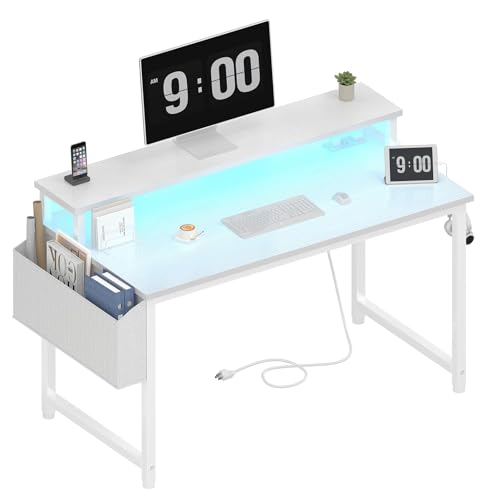
Dual Monitor Desk Setup: The Complete Guide
Boost your productivity and comfort with a perfectly optimized dual monitor workstation. From desk size to ergonomic placement, we cover everything you need.
Why a dedicated dual monitor desk? A well-designed dual monitor setup can increase productivity by up to 42%. But it requires more than just plugging in two screens. The right desk, proper monitor arms, and thoughtful cable management are essential for a clean, ergonomic workspace. This guide walks you through every step.
1. Choosing the Right Desk for Dual Monitors
Not every desk can comfortably accommodate two monitors. A minimum depth of 30 inches is recommended to place screens at a comfortable viewing distance. Width is equally important: for two 24-inch monitors, a 55-inch wide desk provides enough space for both screens plus peripherals. If you use larger 27-inch or 32-inch monitors, consider a desk extension or a corner desk to maximize surface area.
For a compact setup, an L-shaped adjustable desk offers flexibility, allowing you to place one monitor on each wing. Alternatively, a adjustable computer desk lets you fine-tune the height to align with your ergonomic needs. If floor space is limited, a floating desk with shelves can free up room while still supporting two monitors with a sturdy wall mount.
2. Monitor Placement & Ergonomic Best Practices
Proper monitor placement reduces eye strain and neck pain. Position the top of your screens at or slightly below eye level when sitting upright. The distance from your eyes to the screens should be about an arm's length (20–30 inches). For dual monitors, place the primary screen directly in front of you, and the secondary screen at a slight angle (15–30 degrees) to the side.
Using a desktop monitor holder or a dual monitor arm is highly recommended. It frees up desk space and allows you to adjust height, tilt, and swivel effortlessly. If you're on a budget, a adjustable monitor stand can elevate both screens to the correct height. Remember to align the monitors so that the bezels are flush, creating a seamless viewing experience.
3. Cable Management for a Clean Desk
Two monitors mean twice the cables. Without proper management, your desk quickly becomes a tangled mess. Use cordless desk lamps and wireless peripherals where possible to reduce clutter. For remaining cables, invest in a cable tray or under-desk cable management system. Many desks, like the desk that hides cords, come with built-in solutions.
Consider using a full desk mouse pad to create a unified surface and hide cable channels beneath it. Labeling cables and using zip ties or sleeves keeps everything organized and accessible for future adjustments.
4. Essential Accessories for a Dual Monitor Setup
Beyond the monitors themselves, several accessories enhance your dual monitor experience. A mechanical keyboard and a mesh desk organizer keep your workspace tidy. For audio, consider a pair of compact desk speakers or a soundbar that fits under your monitors. A rechargeable desk lamp provides adjustable lighting without adding cables.
To maintain posture, a desk chair with neck support is invaluable, especially during long work sessions. For standing desks, a standing desk stool encourages active sitting. Finally, a felt desk pad protects your desk surface and adds a touch of elegance.
5. Dual Monitors vs. Ultrawide: Which is Better?
This is a common dilemma. Dual monitors offer more flexibility: you can dedicate one screen to a primary task (like coding or design) and the other to reference materials, emails, or chat. They also allow for independent rotation (portrait mode) and are often cheaper than large ultrawide displays. However, an ultrawide offers a seamless, bezel-free experience and simpler cable management.
If you're a gamer, a gaming desk L-shape with dual monitors can be a game-changer, providing dedicated space for your gaming rig and streaming setup. For professionals, a solid wood office desk paired with dual monitors exudes professionalism and durability.
6. Your Dual Monitor Desk Setup Checklist
Follow this checklist to set up your dual monitor desk correctly from day one:
- Choose a desk with at least 55" width and 30" depth.
- Install a dual monitor arm or sturdy monitor stand.
- Position primary monitor directly in front, secondary at a 15–30° angle.
- Set screen brightness and resolution to match.
- Organize cables with trays, sleeves, or under-desk clips.
- Add a desk mat and an ergonomic keyboard/mouse.
- Adjust chair height so your eyes are level with the top bezels.
- Test your setup and fine-tune angle and distance.
For those who switch between sitting and standing, a motorized sit-stand desk is the gold standard. It allows you to raise or lower the entire setup with a button press, maintaining proper ergonomics in both positions.
7. FAQ: Dual Monitor Desk Setup
What size desk do I need for two monitors?
A desk at least 55 inches wide and 30 inches deep is recommended. For larger monitors (27" and above), consider 60+ inches width.
Can I use a standing desk with dual monitors?
Absolutely. Many standing desks, like the dual motor standing desk, offer ample surface and lifting capacity for dual monitors.
Do I need a monitor arm for dual monitors?
While not mandatory, a monitor arm dramatically improves ergonomics and frees up desk space. It's highly recommended.
How do I manage cables for two monitors?
Use cable trays, sleeves, and under-desk organizers. Also, consider a desk with built-in cable management channels.
Ready to build your ideal dual monitor desk? Browse our desk accessories and desk setup ideas to create a workspace that boosts your productivity and comfort.