
Vertical Monitor Setup: The Ultimate Guide
Unlock a new level of productivity with a vertical monitor setup. Whether you're a developer, writer, or multitasker, a vertical display transforms your workflow.
Start Your Vertical SetupWhy go vertical? A vertical monitor setup gives you more screen real estate for reading long documents, coding, and managing complex workflows. It’s a game-changer for anyone who works with text or data.
Why Choose a Vertical Monitor Setup?
📄 Perfect for Coding & Writing
- View more lines of code without scrolling.
- Read long documents, articles, and emails effortlessly.
- Ideal for side-by-side comparison of text.
📊 Boosted Multitasking
- Stack multiple windows vertically – great for social media dashboards, stock charts, or CRM tools.
- Keep your primary monitor landscape and secondary vertical for reference materials.
- Reduce window switching and improve focus.
🖥️ Save Desk Space
- Vertical monitors take up less horizontal space on your desk.
- Perfect for compact or small L-shaped desks.
- Leaves more room for other desk accessories.
👁️ Ergonomic Benefits
- Reduces neck strain by keeping content at eye level.
- Encourages better posture with proper monitor placement.
- Works well with monitor placement guide principles.
How to Set Up Your Vertical Monitor
Setting up a vertical monitor is straightforward. Follow these steps to optimize your workspace.
1. Choose the Right Monitor
- Size: 24–27 inches are ideal for vertical orientation.
- Resolution: 1440p or 4K for sharp text.
- Panel: IPS for wide viewing angles.
- Consider a monitor stand or arm that supports rotation.
2. Get a Quality Monitor Arm
- Look for a monitor arm with full motion (tilt, swivel, rotate).
- Ensure it supports your monitor's weight and VESA pattern.
- Arms free up desk space and offer perfect positioning.
3. Rotate and Adjust
- Rotate the monitor 90° (portrait mode).
- Adjust height so the top of the screen is at or slightly below eye level.
- Use the desk height calculator for ideal ergonomics.
4. Calibrate Your Display
- Adjust brightness and contrast for comfort.
- Enable blue light reduction for long sessions.
- Set your OS to support portrait orientation.
Best Practices for a Vertical Setup
⚙️ Ideal Use Cases
- Programming: View more code and debug efficiently.
- Writing: Edit long-form content with fewer scrolls.
- Data Analysis: See more rows in spreadsheets.
- Design: Use vertical for toolbars and palettes.
🔄 Pair with Landscape Monitor
- Combine vertical and landscape for the ultimate setup.
- Use landscape for main work, vertical for reference.
- Many professionals use this dual monitor setup.
🧰 Cable Management
- Hide cables with cable management solutions.
- Use cable trays or sleeves for a clean look.
- Keep your desk surface tidy and organized.
💡 Lighting
- Reduce glare with proper desk lighting.
- Position your monitor away from windows.
- Consider a monitor light bar for even illumination.
Best Desks for a Vertical Monitor Setup
A vertical monitor setup works best on a desk with sufficient depth and stability. Here are some top choices:
- Large L-Shaped Desk: Perfect for a vertical + landscape combo. View large L-shaped desks.
- Standing Desk: Pair your vertical monitor with a height-adjustable desk for ergonomic flexibility.
- Corner Desk: Maximize corner space for a vertical monitor setup. Check corner desk setups.
- Minimalist Desk: Keep it clean and focus on productivity. Explore minimalist desk styles.
Recommended Monitors & Arms for Vertical Setup
⚠️ AFFILIATE DISCLOSURE: This website contains affiliate links. As an Amazon Associate, we earn from qualifying purchases. If you make a purchase through these links, we may receive a small commission at no additional cost to you. Read our full affiliate policy.

Thinlerain 23.8 inch Computer Monitor 1920x1080 Vertical PC Monitor with HDMI VGA AV BNC USB Ports, Multi-Function Stand, VESA, Display Frameless Build-in Speakers for Office Home
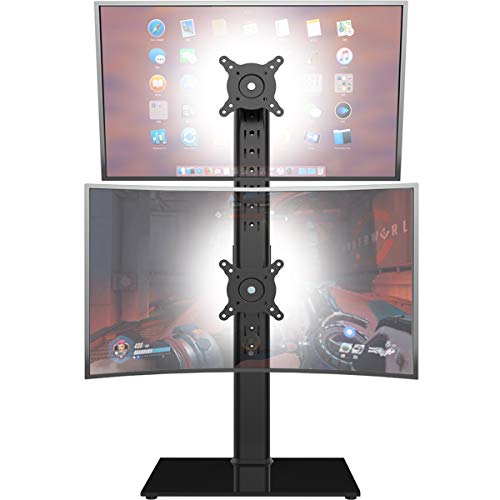
Dual Monitor Stand - Vertical Stack Screen Free-Standing Monitor Riser Fits Two 13 to 34 Inch Screen with Swivel, Tilt, Height Adjustable, Holds One (1) Screen Up to 44Lbs

HUANUO Vertical Dual Monitor Mount, Stacked Monitor Stand for 2 Monitors with Height Adjustment Computer Monitor Arm Supports Two 17 to 32 Inch with C Clamp Each Desk Mount Hold up to 17.6lbs

16.1" Portable Monitor for Laptop - 1200P FHD, Ultra-Thin Laptop Screen Extender Horizontal Vertical with 360° Rotating Detachable Stand, Plug & Play, Dual Travel Monitor for Laptop Wins Mac Chrome

STANDOPIA Dual Monitor Mount for 17-40'', Holds up to 26.4 lbs/arm | Vertical/Parallel Placement Monitor Desk Arms for 2 Monitors, with Clamp/Grommet Base, VESA Mount 75/100 mm

BONTEC Vertical Dual Monitor Desk Mount, 13-34", VESA 75x75/100x100mm | Full Motion Adjustability, Up to 22lbs per Arm, C Clamp and Grommet Mounting Options, Cable Management for Flexible Setup

Dual Monitor Stand for 2 Screens up to 32 inch, Vertical Stacked Dual Monitor Mount, Full Motion Adjustable Tall Double Monitor Desk Mount, Each Arm Holds 4.4-22lbs, VESA 75/100mm, Black, Freelift

Veout Portable Monitor with Built-in Stand, IPS Vertical Monitor, USB-C & Mini HDMI External Laptop Screen, Second Display for PC, MacBook, iPad, Phone, Travel & Office, 14 inch
Pro Tip: Maximize Your Vertical Monitor
Use your vertical monitor for specific tasks like a dedicated Slack window, email client, or terminal. This keeps your primary monitor clutter-free and your workflow streamlined.
For a complete desk overhaul, don't forget to check our desk tips and ergonomic accessories guides.