Custom Desk PC: The Ultimate Integrated Workspace
Build a powerful computer directly into your desk. Eliminate clutter, maximize airflow, and create a stunning centerpiece for your home office or gaming setup. This comprehensive guide covers everything from planning to execution.
Start Your Build PlanWhy build a custom desk PC? It’s the ultimate expression of personal workspace design. A desk PC integrates your computer hardware directly into the desk structure, offering superior cooling, cable management, and a minimalist aesthetic. Whether you're a gamer, content creator, or professional, this guide will help you design a system that fits your needs and budget.
1. Planning Your Custom Desk PC
Before buying any components, map out your vision. Consider the desk size, shape, and where the PC components will reside. Will you mount the motherboard under the glass, embed it in a side compartment, or build a dedicated tower enclosure within the desk?
Key considerations: Desk dimensions, component layout, cooling paths, and cable routing. Think about your overall desk setup and how the PC integrates with monitors, peripherals, and ergonomics.
Desk Size & Shape
- Measure your available space carefully.
- Consider L-shaped desk setups for extra surface area.
- Plan for monitor arms and monitor arms to free up desk space.
Component Placement
- Motherboard: horizontal or vertical orientation.
- GPU: ensure clearance and airflow.
- PSU: placement affects cable management.
- Storage: NVMe drives save space.
For a clean look, many builders choose a tempered glass top to showcase the components. Others prefer a solid wood top with a side compartment. Your choice impacts desk materials and surfaces.
2. Essential Components & Hardware
Selecting the right components is crucial for performance and aesthetics. Below are the core parts you'll need, along with approximate price ranges (current market).
Motherboard & CPU
- ATX or Micro-ATX – choose based on desk space.
- Intel Core i7 / AMD Ryzen 7 – $350+
- Consider future upgrade paths.
Graphics Card (GPU)
- NVIDIA RTX 4070 or AMD RX 7800 XT – $550+
- Ensure PCIe riser cable quality.
- Check dimensions for desk compartment.
Cooling System
- Custom water cooling loop – $400–$800
- High-quality fans for airflow.
- Radiator placement (top, side, or bottom).
Power Supply & Storage
- 850W+ 80+ Gold PSU – $150+
- 2TB NVMe SSD – $120+
- Extra SATA SSDs for bulk storage.
Don't forget desk accessories like cable management tools, and consider wireless charging desk integration for a truly clean setup.
3. Cooling & Noise Management
A custom desk PC allows for oversized radiators and multiple fans, resulting in superior cooling and lower noise compared to standard cases. Plan your airflow direction carefully—intake from the front/side and exhaust at the rear/top.
- Use high-static pressure fans for radiators.
- Consider desk acoustic treatment to dampen vibrations.
- Monitor temperatures with software and adjust fan curves.
- If water cooling, use quality fittings and leak-test thoroughly.
Proper cooling ensures your components last longer and perform at their peak. It also contributes to a quieter workspace, which is essential for a distraction-free desk.
4. Cable Management & Ergonomics
The beauty of a desk PC is the ability to hide almost all cables. Plan your cable routes before assembly. Use cable trays, velcro ties, and custom-length cables.
- Route monitor cables through the desk.
- Use a KVM switch desk setup for multi-device management.
- Integrate USB hubs and charging ports into the desk edge.
Ergonomics are equally important. Ensure your monitor height is correct with a monitor placement guide. Use a proper sitting posture to avoid strain. A standing desk frame can also be integrated—see our complete sit-stand guide for ideas.
5. Aesthetics & Personalization
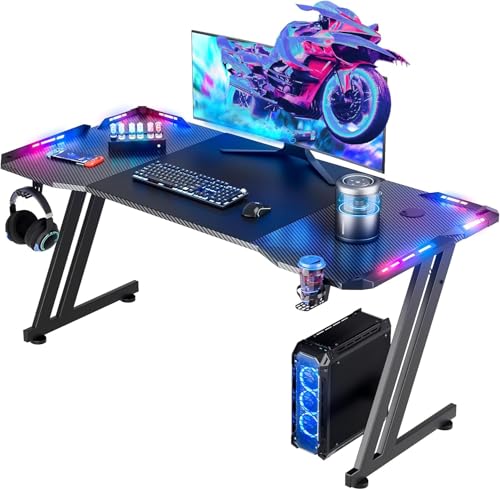
Your custom desk PC should reflect your style. Choose a color scheme, add RGB lighting, and select materials that complement your room.
- Use addressable RGB strips for ambient glow.
- Consider a RGB gaming desk aesthetic.
- Add desk decor like plants or figurines.
- Explore minimalist desk style for a clean, professional look.
Think about the overall vibe—whether it's cozy desk warmth or industrial desk style ruggedness. The choice is yours.
6. Final Checklist & Troubleshooting
Before you power on, double-check everything. Here’s a quick list:
- All connections tight (CPU, RAM, GPU, PSU).
- Cooling fans and pump connected.
- Leak test (if water cooling).
- Monitor cables plugged in.
- BIOS settings configured.
If you encounter issues, refer to your component manuals or online forums. For a smooth experience, consider our first desk setup guide for general workspace best practices.
Ready to build? The journey from concept to reality is exciting. With careful planning, the right components, and attention to detail, your custom desk PC will become the centerpiece of your workspace. Start with a solid plan, and don't hesitate to iterate as you go.