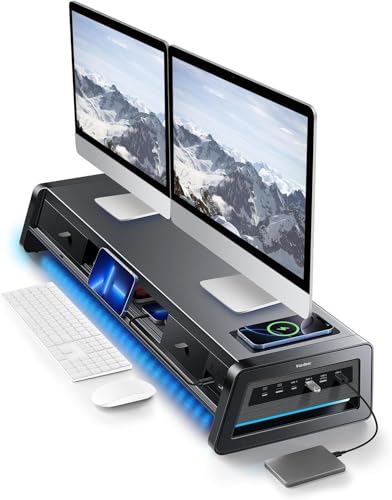
Maximize Efficiency with a Dual Monitor Productivity Desk
Unlock the full potential of your workspace with a perfectly configured dual monitor setup. Boost your workflow, enhance ergonomics, and create a command center that drives results.
Why Dual Monitors? Studies show that a dual monitor setup can increase productivity by up to 42%. Whether you're a developer, designer, financial analyst, or content creator, the right dual monitor productivity desk transforms how you work. This guide covers everything from selecting the perfect desk to optimizing monitor placement and choosing essential accessories.
1. Selecting the Ideal Desk for Dual Monitors
Your desk is the foundation of your productivity. For a dual monitor setup, you need a surface that accommodates two screens, a keyboard, mouse, and possibly a laptop or other peripherals. Consider these factors:
- Width & Depth: A desk at least 55 inches wide and 28 inches deep provides comfortable space for two 24–27 inch monitors. For larger screens (32 inch+), consider 60 inches or more.
- Desk Shape: L-shaped desks and corner desks offer extra surface area and can accommodate multiple monitors plus a dedicated work zone.
- Height Adjustability: A sit-stand desk allows you to alternate between sitting and standing, which is crucial for long work sessions. Look for models with a stable frame that can support heavy monitors.
- Material & Durability: Solid wood and high-quality laminate surfaces provide a sturdy base. Ensure the desk can support the weight of your monitors, arms, and other equipment.
For a deep dive into desk types, visit our desk types guide.
2. Optimizing Monitor Placement for Ergonomics
Proper monitor positioning reduces eye strain, neck pain, and fatigue. Here are the key principles for a healthy dual monitor setup:
Dual Monitor Ergonomics Checklist
- Primary Monitor: Place your main monitor directly in front of you, with the top of the screen at or slightly below eye level.
- Secondary Monitor: Position the secondary monitor to the side, angled slightly toward you. The inner edge should be close to the primary monitor.
- Distance: Sit at an arm's length from the screens (about 20–30 inches). Adjust font sizes if needed.
- Monitor Arms: Invest in quality monitor arms for maximum flexibility. They free up desk space and allow precise height and angle adjustments.
- Brightness & Contrast: Match brightness and contrast between monitors to reduce eye fatigue.
For a complete ergonomic guide, check out our monitor placement guide and proper sitting posture tips.
3. Must-Have Accessories for a Productivity Powerhouse
Beyond monitors, the right accessories can make or break your productivity. Here's what you need to complete your desk setup:
⌨️ Input Devices
Mechanical keyboards offer tactile feedback and speed. Pair with an ergonomic mouse to prevent wrist strain.
🔊 Audio & Communication
Clear audio is vital for meetings. Consider desk speakers or high-quality headphones. A desk microphone ensures your voice is heard clearly.
🔌 Cable Management
Keep your desk tidy with cable trays and raceways. A clean workspace reduces distractions and improves focus.
💡 Lighting
Reduce eye strain with a monitor light bar or a quality desk lamp. Proper lighting also enhances your video call presence.
Explore more desk accessories and tech gadgets to personalize your setup.
4. Software & Workflow Tips for Dual Monitors
Hardware is only half the battle. To truly boost productivity, optimize your digital workflow:
- Window Management: Use tools like Microsoft PowerToys (FancyZones) or Rectangle (Mac) to snap windows into custom layouts.
- Task Allocation: Dedicate one monitor for your primary task (e.g., coding, design) and the other for reference materials, communication apps, or monitoring dashboards.
- Virtual Desktops: Create separate virtual desktops for different projects or contexts.
- Focus Mode: Use the distraction-free desk method to minimize interruptions.
For more productivity strategies, check out our desk productivity habits and desk timer methods.
5. Building Your Dual Monitor Desk on Any Budget
Whether you're setting up a small desk or a spacious executive desk, there's a solution for every space and budget. Here's a general price guide:
- Entry-Level (Under $500): Basic small computer desks or standing desk converters with affordable monitor arms.
- Mid-Range ($500–$1,200): Quality stand-up desks with robust frames, plus premium monitor arms and accessories.
- High-End ($1,200+): Solid wood desks, high-end electric standing desks, and complete ergonomic packages.
For more budget-friendly ideas, visit our desk budget guide.
6. Advanced Dual Monitor Desk Configurations
Take your setup to the next level with these advanced configurations:
Vertical Stack
Place one monitor above the other. Ideal for coding or reading documents.
Ultrawide + Secondary
An ultrawide monitor paired with a vertical secondary monitor for maximum screen real estate.
Laptop + Dual Monitors
Use a laptop as a third screen with a docking station. Perfect for hybrid workers.
See more desk setup ideas and dual monitor setup examples.
7. Keeping Your Dual Monitor Desk Pristine
A clean desk is a productive desk. Regular maintenance ensures your equipment lasts longer and looks great:
- Screen Cleaning: Use microfiber cloths and screen-safe cleaners for monitors.
- Dust Management: Wipe down your desk surface weekly. Use desk organizers to keep clutter at bay.
- Cable Maintenance: Regularly check and adjust cable management to prevent tangles and dust buildup.
💡 Pro Tip
Invest in a desk mat to protect your surface and create a cohesive look. Pair with a monitor stand with storage to keep small items organized.
Ready to Build Your Dual Monitor Productivity Desk?
Explore our recommended products below and create a workspace that empowers your best work.
Shop Recommended Setup