
Ultimate Triple Monitor Setup Guide
Transform your workspace with three screens. Boost productivity, immerse in gaming, and master multitasking with the perfect triple monitor desk configuration.
Why Triple Monitors? A triple monitor setup isn't just about having more screen space—it's about creating a workflow that adapts to your needs. Whether you're a trader monitoring multiple charts, a developer with code and terminals, or a gamer craving an immersive FOV, three screens unlock a new level of efficiency and enjoyment.
Key Benefits of Triple Monitors
🚀 Peak Productivity
Dedicate one screen for research, one for writing, and one for communication. No more tab-switching chaos.
🎮 Immersive Gaming
Surround yourself with panoramic views. Perfect for racing, flight sims, and open-world adventures.
📊 Data Visualization
Spreadsheets, dashboards, and real-time data streams become instantly readable across three panels.
🧠 Reduced Context Switching
Keep everything visible. Less mental load, more focus on the task at hand.
How to Set Up Your Triple Monitor Desk
A successful triple monitor setup depends on three pillars: monitor selection, ergonomic mounting, and desk optimization. Let's break down each step.
- Choose the right monitors: For a cohesive experience, use identical models (same size, resolution, and bezel thickness). If that's not possible, at least match the resolution and refresh rate to avoid visual dissonance. Consider best monitor size for desk to ensure they fit comfortably.
- Select a sturdy monitor arm: A triple monitor arm or three individual arms with strong gas springs are essential. Look for arms that support the weight and size of your monitors. Check our guide on monitor arms and stands for heavy-duty options.
- Plan your layout: The most common layout is a flat row, but you can also angle the side monitors inward for a more immersive curve. For a unique approach, see vertical monitor setup inspiration.
- Optimize ergonomics: The center of your main monitor should be at or slightly below eye level. Side monitors should be at a 30-45 degree angle. Use our monitor placement guide for precise measurements.
- Manage cables like a pro: With three monitors, cable clutter multiplies. Invest in cable trays, raceways, and sleeves to keep your desk surface clean.
A well-planned triple monitor setup not only looks impressive but also enhances your workflow. For those who need to switch between multiple computers, a KVM switch desk setup is a game-changer, allowing you to control all three monitors with a single keyboard and mouse.
Desk Requirements for Triple Monitors
Your desk needs to accommodate the width and depth of three monitors, plus the mounting hardware. Here's what to consider:
- Desk Width: A minimum of 55–60 inches is recommended for three 24-inch monitors. For 27-inch monitors, aim for 65–70 inches or more.
- Desk Depth: At least 30 inches to maintain a comfortable viewing distance. Deeper desks (36 inches) allow for more flexibility with monitor arms.
- Weight Capacity: Ensure your desk can support the combined weight of monitors, arms, and other gear. Solid wood or heavy-duty metal frames are ideal.
- Layout compatibility: If you have a corner desk setup or an L-shaped desk setup, plan your monitor placement to maximize the available surface.
For those on a budget, a desk setup on a budget is still possible—look for second-hand monitors or start with two and add the third later. Also, consider a straight desk setup for simplicity, or a floating desk setup for a modern, space-saving look.
Productivity & Workflow Tips
Once your hardware is in place, software optimization takes you to the next level. Here are some proven strategies:
- Use virtual desktops: Assign each monitor a specific task (e.g., Monitor 1: main work, Monitor 2: communication, Monitor 3: reference).
- Keyboard shortcuts: Master window snapping (Windows key + arrows) or use tools like PowerToys FancyZones for custom layouts.
- Reduce distractions: Keep non-essential tabs and apps off your main monitor. Check our distraction-free desk guide for more tips.
- Maintain ergonomics: Remember to desk stretching and follow a sit-stand routine to stay healthy during long work sessions.
Ready to Build Your Triple Monitor Setup?
Explore our top recommended products below—curated for performance, durability, and value.
See Recommended Gear ↓If you're also considering audio and peripherals, a triple monitor desk is the perfect foundation for a high-end desk tech and gadgets ecosystem. Pair your setup with mechanical keyboards, ergonomic mice, and desk speakers for a complete workspace. For gamers, RGB gaming desk aesthetics can take your immersive experience further.
Top Picks for Triple Monitor Setup
⚠️ AFFILIATE DISCLOSURE: This website contains affiliate links. As an Amazon Associate, we earn from qualifying purchases. If you make a purchase through these links, we may receive a small commission at no additional cost to you. Read our full affiliate policy.

Kado 3-Pack Trio 27" Curved 1500R 1920x1080 75Hz FHD Computer Monitor | Triple Monitor Setup HDMI Office Gaming Hybrid, VESA Wall Mount Arm Mount Built-in Speakers, Panoramic Display Multi-tasking
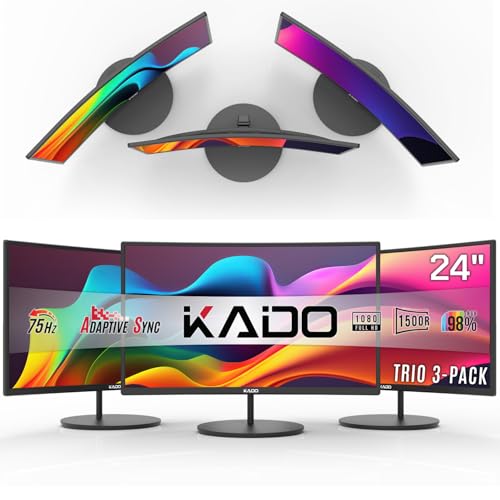
Kado 3-Pack Trio 24" Curved 1500R 1920x1080 75Hz FHD Computer Monitor

Kado Triple Monitor 3-Pack 27" 1920x1080 75Hz FHD Computer Monitor Trio | HDMI Office Gaming Hybrid Desk Setup, VESA Wall Mount Arm Mount Built-in Speakers, Panoramic Display Multi-tasking

Kado 3-Pack 24" Curved 1500R 1920x1080 75Hz Full HD Computer Monitor

HUANUO Triple Monitor Mount for 17 to 32 inch Screens, Adjustment Gaming Triple Monitor Stand with Swivel, Tilt, Rotation, Clamp & Grommet Kit
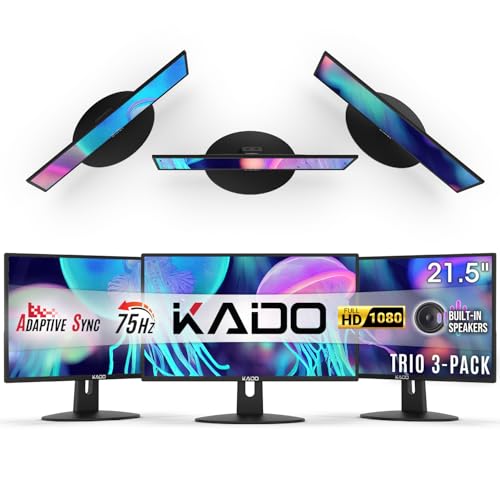
Kado 3-Pack Trio 22" Flat Screen 1920x1080 75Hz FHD Computer Monitor

WALI Triple Monitor Stand, Free Standing for 13-27 inch Screens,up to 22lbs | 3 monitor stand for desk, Adjustable, Full Motion with Tilt, Swivel, Rotation, Grommet Base, VESA 75/100mm (MF003)
Frequently Asked Questions
Can my computer handle three monitors?
Most modern GPUs support three displays. Check your graphics card's output ports (DisplayPort, HDMI, etc.) and ensure you have the right cables.
Is a triple monitor setup worth it?
Absolutely—if you multitask frequently, work with large datasets, or enjoy immersive gaming. It's one of the best upgrades for desk productivity habits.
What's the ideal desk size?
A desk at least 60 inches wide and 30 inches deep is a great starting point. For larger monitors, go bigger.
How do I manage cables?
Use cable sleeves, under desk cable management, and zip ties to keep everything neat. A wireless desk setup can also reduce visible cables.
Ready to take your workspace to the next level? Check out our desk setup and layout hub for more inspiration, from single monitor setups to ultrawide setups and beyond.