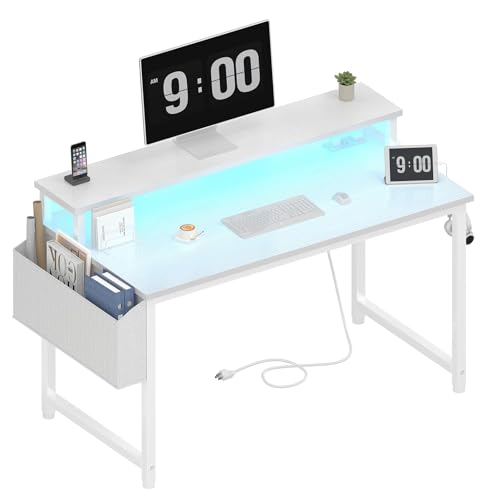
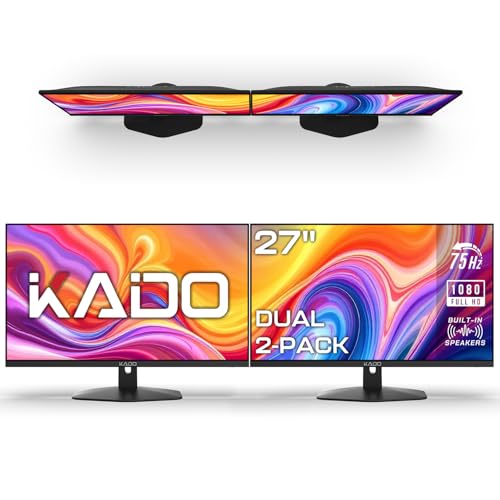
Home Office Desk Setup with Dual Monitors
Boost your productivity with a perfectly optimized dual-monitor desk setup. Learn ergonomic monitor placement, cable management, and the best accessories to transform your home office.
Shop Recommended Desks →Why a Dual-Monitor Desk Setup?
A dual-monitor setup can increase productivity by up to 42% by reducing the need to switch between windows and allowing for better multitasking. Whether you're a designer, developer, trader, or content creator, two screens give you the digital real estate to work smarter, not harder. But a great setup isn't just about the monitors—it's about the desk, ergonomics, and accessories that support them.
In this guide, we'll cover everything you need to build the ultimate home office desk setup with dual monitors, from choosing the right desk layout to optimizing your posture and cable management.
Ergonomic Monitor Placement for Dual Screens
Proper monitor placement is critical to avoid neck pain and eye strain. Here are the golden rules for dual-monitor ergonomics:
- Primary monitor directly in front: Your main monitor should be centered directly in front of you, with the top of the screen at or slightly below eye level.
- Secondary monitor to the side: Place your secondary monitor to the left or right, angled slightly toward you. The inner edge of the secondary screen should be about 30° from your center line.
- Monitor arms are essential: Use a monitor arm desk mount to easily adjust height, tilt, and orientation. This frees up desk space and ensures perfect positioning.
- Maintain distance: Sit at arm's length from your screens (about 20-30 inches). The font size should be readable without leaning forward.
For a complete guide on desk ergonomics, check out our ergonomic desk setup guide.
Choosing the Right Desk for Dual Monitors
Not every desk can comfortably support two monitors. You need sufficient width, depth, and weight capacity. Here's what to look for:
- Minimum width: At least 55 inches (140 cm) for two 24–27 inch monitors side-by-side. For larger screens (32″+), aim for 60–72 inches.
- Depth: At least 28 inches (71 cm) to maintain proper viewing distance and allow for a keyboard and mouse.
- Stability: A sturdy standing desk attachment or a solid adjustable height computer desk prevents wobble, especially with monitor arms.
- Shape: L-shaped desks or corner desks are excellent for dual monitors, giving you extra space and a natural workflow separation.
If you're using a standing desk converter for dual monitors, ensure it has a large enough surface and can handle the weight of both screens.
For small spaces, consider a small corner computer desk with monitor shelf to maximize vertical space.
Cable Management for a Clean Desk
Two monitors mean twice the cables—power, video, USB hubs, and peripherals. A messy cable jungle not only looks bad but can also interfere with your workflow. Here's how to keep it tidy:
- Use a cable management box: Hide power strips and excess cables in a cable management box.
- Under-desk cable trays: Route cables along the underside of your desk using cable management trays.
- Monitor arms with cable channels: Many monitor arms have built-in cable routing to keep wires off the desk surface.
- Label your cables: Use cable labels to easily identify which cable goes to which monitor.
A clean desk is a productive desk. For more ideas, explore our desk with cable management collection.
Must-Have Accessories for Your Dual-Monitor Setup
Beyond the monitors and desk, these accessories can take your setup to the next level:
- Monitor arms: An adjustable dual-monitor stand is non-negotiable for ergonomics and space savings.
- Ergonomic keyboard and mouse: Check out our ergonomic keyboard guide to reduce wrist strain.
- Monitor light bar: A monitor light bar illuminates your desk without taking up space or causing glare.
- Desk mat: A large desk mat protects your surface and provides a smooth mouse pad area.
- USB hub: A powered USB hub makes it easy to connect peripherals without reaching behind your computer.
For more inspiration, browse our collection of must-have desk accessories for precision work.
Lighting and Glare Reduction
Poor lighting can cause eye fatigue and reduce the clarity of your dual monitors. Here are some tips:
- Position monitors perpendicular to windows: Avoid placing your screens directly in front of or behind a window to prevent glare.
- Use bias lighting: Attach LED strips to the back of your monitors to reduce eye strain and create a more immersive environment. Check out desk LED lights for easy installation.
- Adjust monitor brightness: Match your monitor brightness to the ambient light in your room.
- Anti-glare filters: If reflections are a problem, consider anti-glare screen protectors.
Good lighting also improves your video call presence. A best desk lamp for eye strain can provide focused task lighting without creating hot spots on your screens.
Integrating a Standing Desk with Dual Monitors
Alternating between sitting and standing is one of the best things you can do for your health. Here's how to make it work with dual monitors:
- Electric standing desk: An electric standing desk with monitor mount allows you to smoothly transition between heights without losing your ergonomic setup.
- Monitor arms are key: With monitor arms, your screens move with your desk, maintaining the same relative position.
- Cable management: Ensure your cables are long enough to accommodate the full height range of your desk.
- Anti-fatigue mat: An anti-fatigue mat makes standing more comfortable.
Learn more about optimal desk height in our standing desk height guide.
Productivity Workflow with Dual Monitors
Once your setup is in place, it's time to optimize your workflow:
- Task allocation: Use your primary monitor for your main task (e.g., design, coding, writing) and your secondary monitor for supporting tools (email, chat, research, Spotify).
- Window management: Use built-in snap features (Windows Snap Assist, macOS Split View) to organize windows efficiently.
- Keyboard shortcuts: Master shortcuts for moving windows between monitors (Win+Shift+Arrow keys or similar).
- Consistent backgrounds: Use a panoramic wallpaper or a dual-monitor wallpaper to create a cohesive look.
For more productivity hacks, visit our home office desk setup ideas page.
Final Thoughts: Build Your Dream Setup
A home office desk setup with dual monitors is an investment in your productivity and well-being. By following the ergonomic guidelines, choosing the right desk and accessories, and keeping your cables organized, you can create a workspace that feels both professional and inspiring.
Remember, the goal is not just to have two monitors, but to have a setup that works for you. Experiment with different configurations and adjust as needed. And when you're ready to upgrade your gear, check out the recommended products below—they're carefully selected to help you build the ultimate dual-monitor home office.
If you're working with a smaller footprint, explore our small office desk ideas and desks for small spaces with drawer for compact solutions that still accommodate dual monitors.